Your bot, built and configured how you want it.
fxbot starts simple: a lean, fast core with bots, their chats, and their files. It is local first. It runs on a machine you own and works with local models as well as hosted ones. Make each bot yours, from its look and instructions to its model and tools, and grow fxbot with only the add-ons you want: skills and MCP servers today, and plugins next.
curl -fsSL https://raw.githubusercontent.com/iammrduncan/fxbot/main/setup.sh | sudo bashv0.2.0 · Debian and Ubuntu · Apache-2.0
Who it's for
People who run their own machine
fxbot is for one person with a machine of their own: a home server, a small VPS, or the computer under the desk. It listens on loopback and has no login of its own, so whatever you put in front of it decides who reaches it, and everyone who does sees every bot and every chat. Tailscale is the recommended way in from other devices.
There is no hosted version and no account to make. Bots, chats, files, and keys are stored on your machine. Each message goes to the provider its bot uses, or stays on your network with a local model server.
- Machine
- Debian or Ubuntu, with systemd
- Runtime
- Node 22.18 or newer, which setup.sh installs when it is missing
- Records
- Postgres, with every key and token sealed
- Agents
- libfx, one agent per provider
- Network
- 127.0.0.1:8787; from other devices, Tailscale (recommended) or a proxy of your own
What it does
Bots you keep talking to
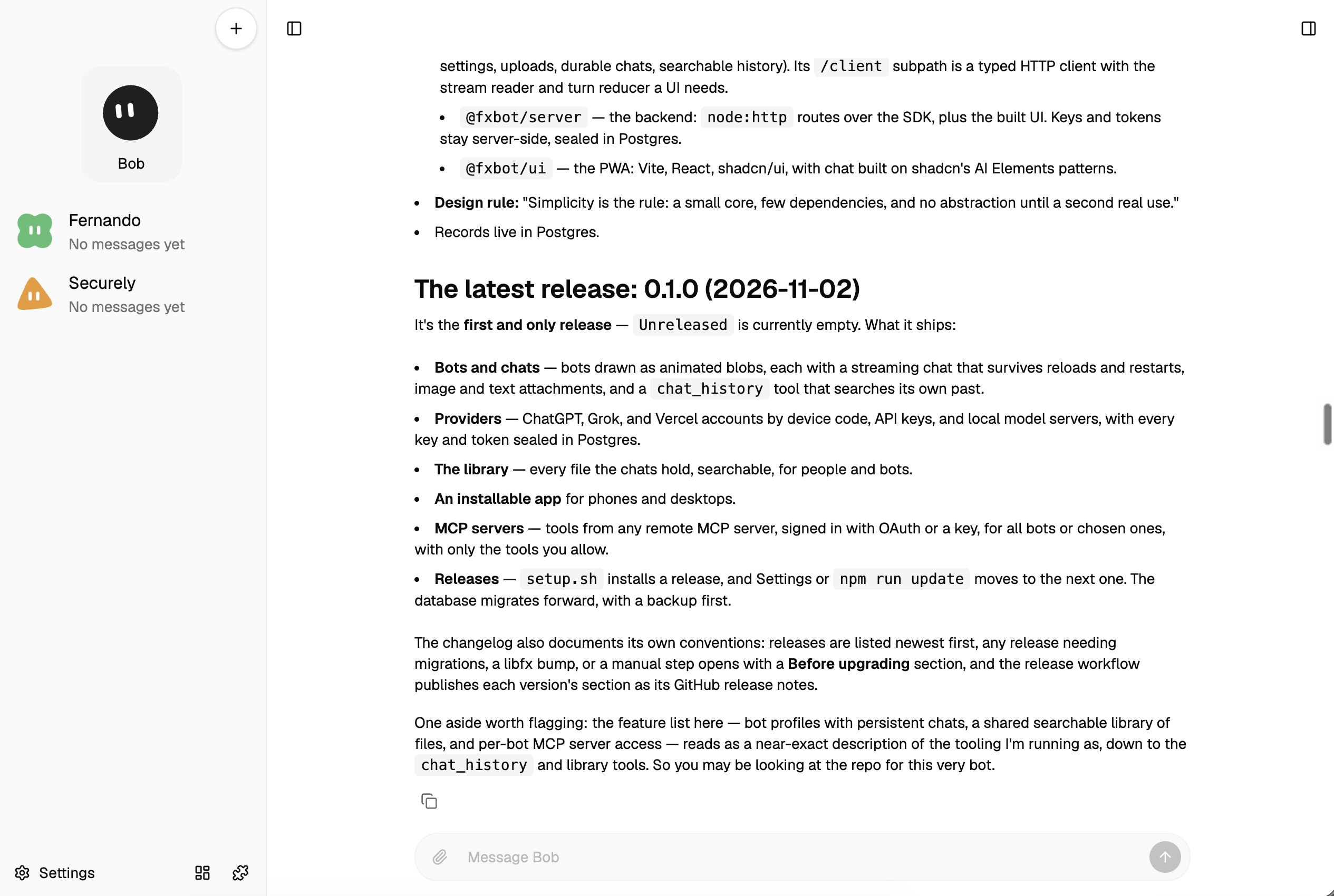
Each bot is a profile with one long-running chat. The core stays small, and the rest comes as add-ons you pick. All of this ships in the current release.
Bots and chats
Give each bot a name, instructions, a provider and model, and a look: one of 14 shapes in 11 colors. Its chat streams, survives reloads and restarts, and takes images and text files. A
chat_historytool lets it search its own past.Providers
Sign in to a ChatGPT, Grok, or Vercel account with a device code, from any device. Or add a key for OpenAI, AI Gateway, OpenRouter, or OpenCode, or point at a local server such as Ollama or LM Studio.
The library
One copy of every file the chats hold: images and text files you send, and documents bots save. Search it across every bot, or open one bot's files beside its chat.
An installable app
Open fxbot on a phone or a desktop and install it. It opens offline, makes room for the notch and the keyboard, and offers Reload when a new build lands.
Add-ons
Skills from fxbot's picks or skills.sh, which bots read when a task needs them. Remote MCP servers from GitHub's registry or by address, with only the tools you allow. Each goes to all bots or the ones you choose, and costs nothing until you add it.
Releases and updates
setup.shinstalls a tagged release. When the next one is out, Settings shows its notes and an Update button. The database moves forward, with a backup first.
Get started
From a fresh machine to a chat
Install it
curl -fsSL https://raw.githubusercontent.com/iammrduncan/fxbot/main/setup.sh | sudo bashOn Debian or Ubuntu. It installs Postgres, Node if the machine needs it, and fxbot as a service on 127.0.0.1:8787.
Open it
sudo tailscale serve --bg 8787On the machine, it is at
http://127.0.0.1:8787. For your other devices, Tailscale is the recommended way in: this command puts it athttps://<machine>.<tailnet>.ts.net.Install the app
Open fxbot on each device. Install it from Settings in Chrome or Edge, or with Share, then Add to Home Screen, on an iPhone.
Add a provider and a bot
In Settings, sign in to an account, add a key, or point at a local model server. Then make a bot and start a chat.